
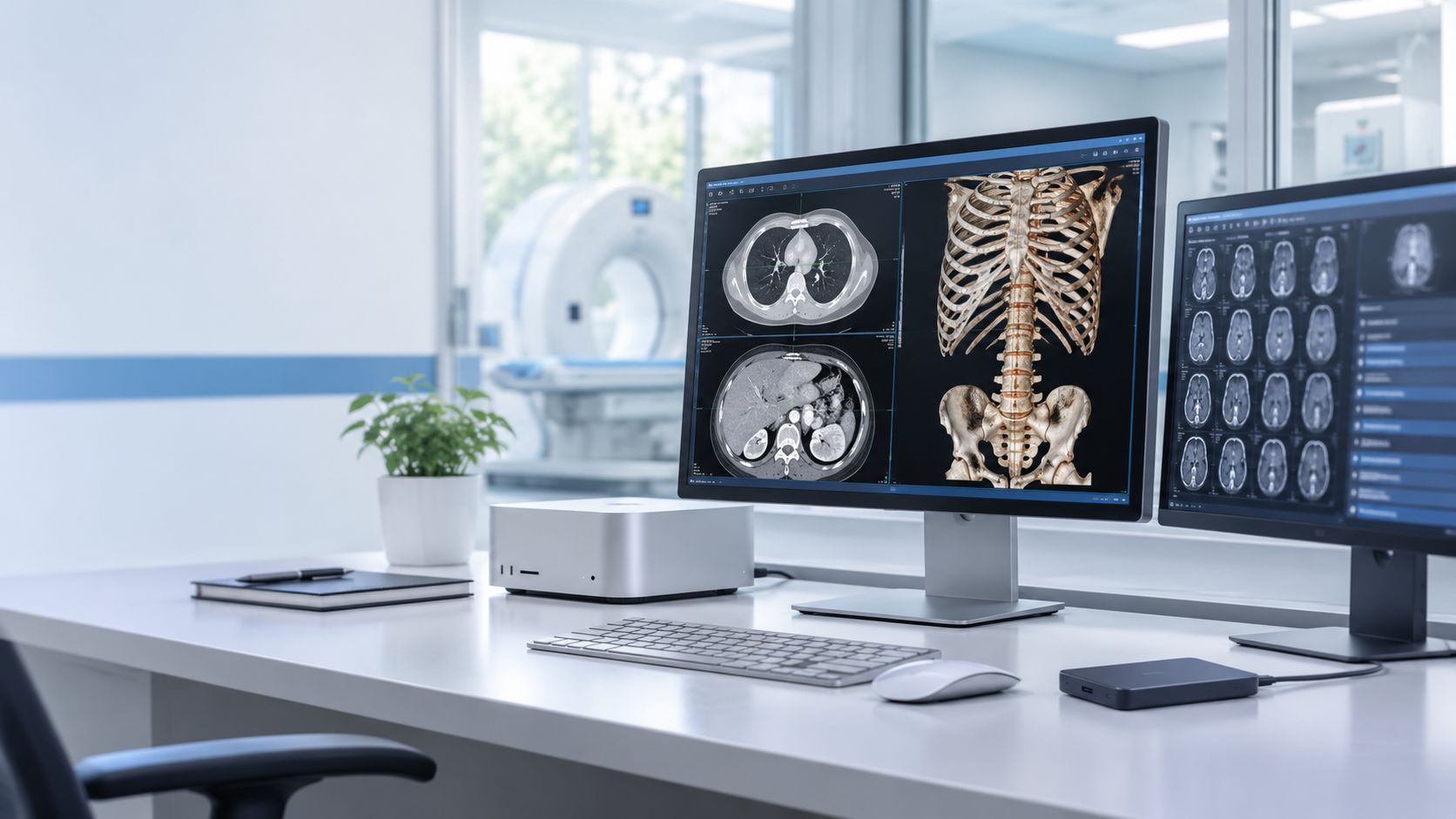
If you ask ten radiologists which Mac is best for OsiriX MD, you will get ten answers, and most of them will be right for that person. A clinic reporting chest X-rays all day needs something very different from a team scrolling through a 3,000-slice cardiac CT.
So instead of crowning one “best Mac”, this guide matches the Mac to the work. It is also a timely refresh. Apple released new Mac mini and Mac Studio models. in September 2026, which means advice built around M2 Max or M2 Ultra machines is now out of date.
First, a quick compatibility check
Here is what Pixmeo, the maker of OsiriX, currently says on its website:
- OsiriX runs only on an Apple Mac, on macOS 10.15 up to macOS 26, with macOS 26 recommended.
- It supports both Intel and Apple Silicon, and is optimised for M1, M2, M3 and M4 chips.
- OsiriX MD is licensed per computer, and the computer needs to be online while you use it.
Now the catch. Apple’s newest desktops, the Mac mini with M6 or M5 Pro and the Mac Studio with M5 Max or M5 Ultra, arrived on 22 September 2026 and run macOS 27. At the time of writing, Pixmeo’s requirements page does not list macOS 27 or the M5 and M6 chips. Pixmeo also says each OsiriX MD version is validated against specific macOS versions. That is normal for a certified medical device, but it means you should confirm the exact Mac and macOS combination before you buy. ProScreen can check this for you.
Why RAM matters most
Most people shop for the chip first. For OsiriX, start with memory.
Apple calls it unified memory because the processor and the graphics engine share one pool. When you open a big CT or MRI, OsiriX loads the series into that pool. Add multiplanar reconstruction (MPR), 3D or volume rendering, or a PET-CT fusion, and several large series sit in memory at the same time.
When memory runs out, the Mac starts using the SSD as overflow. You feel it straight away: scrolling stutters and the 3D view lags when you rotate it. A faster chip does not fix that. More memory does.
Older OsiriX guidance suggested around 8 GB for CT or PET-CT studies of 1,500 images or more, and 12 GB for cardiac or functional studies of 3,000 images or more. Those figures are years old. Studies have grown, and macOS and your other apps want their share too, so we recommend well above them.
One more thing: Mac memory is built into the chip and cannot be upgraded later. Whatever you order is what you will have for the life of the machine, so it is worth stretching a little at purchase.
Three workloads, three configurations
Tier 1: Routine reporting (X-ray, CR/DR, basic CT and MRI)
This is the everyday workload: chest and bone films, ultrasound review, and straightforward CT or MRI with modest series sizes. You scroll, window, measure, and report. You are not doing heavy 3D.
A Mac mini with the M6 chip is plenty. Go for 24 GB of memory if you can, with 16 GB as the floor. A 512 GB to 1 TB internal SSD works well, as long as older studies live on your PACS or a network drive.
Tier 2: Heavy CT and MRI (MPR, 3D, volume rendering, large studies)
Here you are reconstructing in multiple planes, rendering vessels or bones in 3D, and opening thin-slice studies with thousands of images. Both the chip and the memory start to matter.
Step up to an M5 Pro chip, in either a Mac mini or a 14 or 16-inch MacBook Pro if you need to move around. Aim for 48 to 64 GB of memory and a 1 to 2 TB internal SSD.
Tier 3: Cardiac and multi-phase studies, PET-CT, research
Cardiac CT, perfusion and other multi-phase studies stack many time points into one huge dataset. PET-CT fusion keeps two big series live and blends them. Research work adds batch processing and plugins.
This is Mac Studio territory. An M5 Max with 64 to 128 GB of memory covers most teams. For the largest research datasets, the M5 Ultra offers far more memory (Apple says up to 512 GB), though most imaging centres will not need that. Order 2 TB or more of internal storage and plan on fast external or network storage.
The configuration table
| Workload | Mac model | Chip | RAM | Storage | Displays |
| Routine reporting: X-ray, CR/DR, basic CT/MRI | Mac mini | M6 | 24 GB (16 GB minimum) | 512 GB to 1 TB internal, archive on PACS or NAS | Up to 3 external; 1 to 2 is typical |
| Heavy CT/MRI: MPR, 3D, volume rendering, large studies | Mac mini, or 14/16-inch MacBook Pro | M5 Pro | 48 to 64 GB | 1 to 2 TB internal, plus fast external or NAS | Mac mini: up to 3 external. MacBook Pro: up to 3 external |
| Cardiac and multi-phase, PET-CT, research | Mac Studio | M5 Max (M5 Ultra for the biggest research loads) | 64 to 128 GB on M5 Max; more on M5 Ultra | 2 TB or more internal, plus Thunderbolt 5 or NAS storage | Up to 8 |
These are our recommendations, based on how OsiriX uses memory and on Apple’s published specifications. Always confirm the exact configuration, and the macOS compatibility point above, before ordering.
Internal SSD, external drive or NAS?
A simple way to think about it: keep what you are working on close, and keep everything else somewhere safe.
The internal SSD is the fastest storage in your Mac, so it is the right home for the OsiriX database and the current worklist: today’s studies, this week’s studies, and anything you are comparing. Studies open fastest from here.
An external SSD, connected over Thunderbolt, is a good middle ground. It suits a growing local library, a research project, or a spare copy of recent cases. Mac mini with M5 Pro and Mac Studio both have Thunderbolt 5, which is very quick.
A NAS or your PACS is the right home for the long-term archive. It is built for capacity and backup, and several workstations can share it. The new Mac mini also offers a 10Gb Ethernet option, which helps a lot when you pull big studies across the network.
Whichever you choose, remember that an archive on a single drive is not a backup. Keep a second copy somewhere else.
Mac mini, Mac Studio, MacBook Pro or iMac?
Mac mini is the sensible default for a fixed reading desk. It is small, quiet, and you pick your own diagnostic monitor. The M6 version suits routine work, and the M5 Pro version suits heavy CT and MRI.
Mac Studio is the powerhouse. It has more memory headroom, stronger cooling for long rendering sessions, and the most display connections. Choose it for cardiac, PET-CT and research.
MacBook Pro makes sense when you read from more than one place, such as a hospital in the morning and home in the evening, or when you cover teleradiology. It performs like a desktop of the same chip, but costs more for the same power, and you will still plug it into proper monitors at your desk.
iMac is the one we would skip for primary reporting. The all-in-one design is neat, but the built-in screen is not a diagnostic display, you cannot choose a better one, and it offers less room to grow. Apple is also reported to be refreshing the iMac and MacBook Pro soon, so check the current lineup on the day you buy.
How many displays can each Mac drive?
This matters because many reporting setups use more than one screen: a diagnostic monitor for images, and a second screen for the worklist, reports or RIS.
- Mac mini (M6): up to three external displays.
- Mac mini (M5 Pro): up to three external displays.
- MacBook Pro: up to two external displays on the base M5, three on M5 Pro, and four on M5 Max.
- Mac Studio: up to eight displays, according to Apple.
For most reading rooms, two or three screens is plenty, so every option above has enough outputs. What matters more is that the Mac can drive your monitor at its native resolution, so check the monitor’s input requirements before you finalise the order.
The Mac’s own screen is not a diagnostic display
Macs have beautiful screens, but a laptop panel or an iMac screen is built for everyday work, not for diagnosis. A diagnostic monitor is built to show greyscale images accurately and consistently, and it is calibrated to the DICOM standard so that the same image looks the same on every screen.
Apple’s new Studio Display XDR does include a medical imaging mode for general radiology. But Apple lists that feature as available only in the US, it needs a separate colorimeter, and it is not intended for mammography. For practices in India, the dependable route is a Mac paired with a proper DICOM-calibrated diagnostic monitor.
Think of the two as a team. The Mac does the heavy lifting, and the monitor makes sure what you see is what the scan actually shows.
A quick buying checklist
- Match the Mac to your heaviest regular study, not your average one.
- Spend on memory first, then chip, then storage.
- Keep current studies on the internal SSD and the archive on PACS or NAS.
- Plan the monitors and the Mac together, so the ports and resolution line up.
- Confirm macOS and chip compatibility with Pixmeo before you order.
Frequently asked questions
Can OsiriX run on a MacBook Air?
Technically, yes. OsiriX supports Apple Silicon Macs on supported macOS versions, and that includes the MacBook Air. In practice, an Air is fanless and has a much lower memory ceiling than a Pro or Studio, so heavy 3D work and large studies will feel slow. It is fine for reviewing plain films or checking a case on the go. It is not the machine we would pick for daily diagnostic reporting.
How much RAM do I need for OsiriX?
It depends on your studies. As a guide: 16 to 24 GB for routine reporting, 48 to 64 GB for heavy CT and MRI with 3D work, and 64 GB or more for cardiac, PET-CT and research. If you are unsure, take the larger option, because you cannot add memory later.
Does OsiriX work on Intel Macs?
Yes. Pixmeo lists both Intel and Apple Silicon as supported. But Intel Macs are slower for this kind of work, and Apple has said macOS 26 is the last version for them, so they will not receive newer macOS releases. If you are buying new, Apple Silicon is the better choice.
Does OsiriX MD support the newest macOS and chips?
Pixmeo currently lists macOS 10.15 to 26 and says OsiriX is optimised for M1 to M4. Apple’s latest Macs run macOS 27 and use M5 and M6 chips, so check with Pixmeo or ProScreen before ordering one.
Ready to set up your OsiriX workstation?
Choosing a Mac, a licence and a monitor separately means three sets of questions and three places where things can go wrong. The ProScreen OsiriX workstation bundle brings them together: a Mac, an OsiriX MD licence and a diagnostic monitor, matched to your workload. Tell us what you read and how many studies you see, and we will recommend the right setup.
